Tickets
The kanban board for units of work, the active ticket, and what agents can do with tickets.
Last updated:
On this page
The Tickets panel is a kanban board for the units of work inside a phase. You plan and track tickets here, and connected agents read them, move them, and report on them through MCP.
Where to find it
Select Tickets in the sidebar (item 4), or press Ctrl+4. The panel works on the project that is currently open.
A ticket is one unit of work. It has a name, a spec, constraints, acceptance criteria, a status, and a position (its order) inside its phase. On a team project it can also have an assignee. Every ticket belongs to exactly one phase, which is a named stage of the project plan that you manage in the Phase Planner. The board shows the tickets of one phase at a time.
What you see
The toolbar runs across the top of the panel:
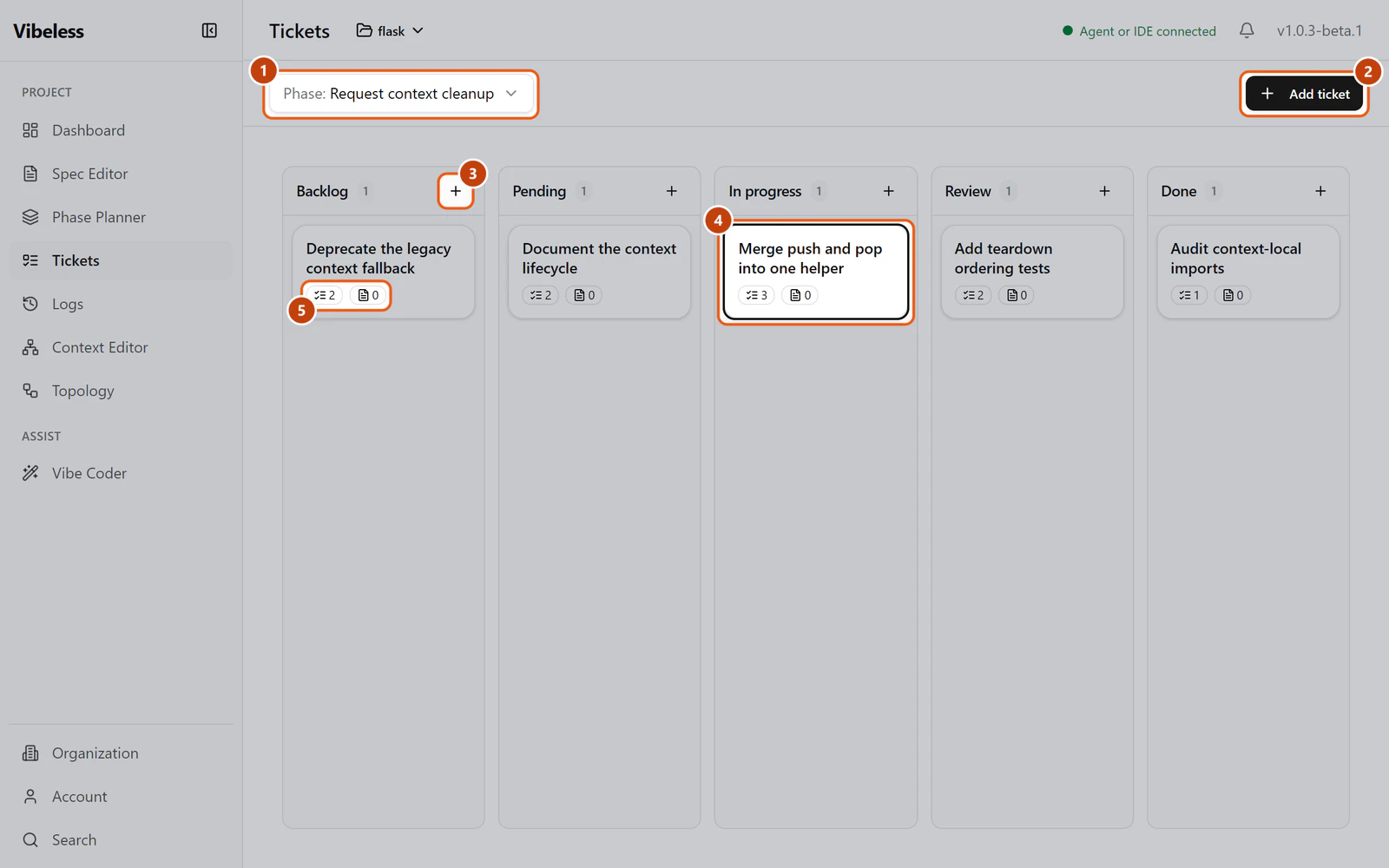
- Phase: a dropdown that picks which phase the board shows. It opens on the project's most recently active phase unless you picked one earlier, for example from the Phase Planner's dependency graph. Several phases can be active at once, so switch here to see each one.
- An assignee filter, on team projects only (see below).
- Needs attention, a filter button that keeps only the tickets whose drift chip is red or orange.
- Add ticket, which opens a blank ticket in the Backlog column.
 (opens full size in a new tab)
Below the toolbar are 5 columns, always in this order:
| Column | Meaning |
|---|---|
| Backlog | Planned work not yet queued. New tickets land here by default. |
| Pending | Queued and ready to start. |
| In progress | Being worked on now. |
| Review | Finished and waiting for a human check. |
| Done | Complete. |
Each column header shows a count and a + button that adds a ticket straight into that column. An empty column shows "No tickets".
Each card shows the ticket name (up to 2 lines) and 2 small badges. The checklist badge counts the non-empty lines in the acceptance criteria. The document badge counts the reports attached to the ticket. Hover a badge to see what it counts. The active ticket (defined below) has a highlighted ring around its card.
A ticket that has a receipt also shows a drift chip, a small colored icon for its latest check. A receipt is the report Vibeless builds on a ticket's work (see the Reports tab below).
| Chip color | Meaning |
|---|---|
| Red | An alert is open, such as "Scope drift detected" (Jev, the paid check described under the Reports tab, flagged the work) or "Risk action outside the ticket" (any plan). |
| Orange | Something quieter is open, such as a file move waiting for your decision or a receipt waiting for your answer. |
| Blue | A real issue was found and you dealt with it. |
| Green | Nothing was flagged, or you marked what was flagged as expected. |
| Gray | The receipt was not checked and nothing waits for you, for example a clean receipt on the free plan. |
Hover the chip to read the reason. Clicking a card with a red or orange chip opens the ticket on its Reports tab.
Team projects
On a project that is shared with a team, and when you are on a team plan, the board adds assignee features:
- A member chip with initials appears on each assigned card. Hover over it to see the full name.
- The assignee filter in the toolbar offers Anyone, Me, and each member of the organization. The filter only changes what the board shows. It never changes the tickets.
Solo projects show none of this.
How to use it
Create a ticket
- Select Add ticket in the toolbar, or the + in the header of the column you want.
- Fill in Name, Spec, Constraints, and Acceptance criteria. Write one acceptance criterion per line, because the acceptance criteria badge counts lines.
- Select Create ticket.
The new ticket goes to the bottom of its column. The assignee field stays disabled until the ticket exists, so assign it after you create it.
Move a ticket with the mouse
Drag a card to another column, or to a new position in the same column. The card moves while you drag, and it lands in the slot where you drop it.
A move between columns saves in 2 steps. Vibeless saves the new status first, then the card's position in the column. If the status save fails, the card returns to where it was and an error message appears. If the position save fails, the app retries once. If it still fails, the app puts the status back and the card returns. In the rare case that the status cannot be put back, the card stays in the new column and a message says its position could not be saved. A failed reorder inside one column also returns the card to its old place.
A plain click on a card does not start a drag. A click opens the ticket and makes it the active ticket.
Move a ticket with the keyboard
Tab to a card, then use these keys:
| Key | Action |
|---|---|
| Space | Pick up the card. Press Space again to drop it. |
| Left and Right arrows | Move the card to the neighboring column. |
| Up and Down arrows | Move the card within its column. |
| Enter | Open the ticket. While a card is picked up, Enter drops it. |
| Escape or Tab | Cancel the move. The card returns to where it started. |
Screen readers announce each pickup, position, and drop by ticket name, column, and position.
Change status without dragging
Open a ticket. On the Spec tab, pick a new value in Status. The ticket moves to the end of the chosen column, and a message confirms the move.
Answer a ticket's flags
Nothing opens on its own when a ticket is checked. The drift chip on the card, the Needs attention filter, and the system notification tell you that a ticket has flagged files. You answer them inside the ticket, on its Reports tab. See Flagged files.
Edit or delete a ticket
Click a card to open the ticket dialog. Change any field on the Spec tab and select Save changes. On a team project, pick a person in Assignee, or choose Unassigned.
To remove the ticket, select Delete ticket, then Delete in the "Delete this ticket?" prompt. Deletion cannot be undone. It also deletes every comment and report on the ticket. If the deleted ticket was the active ticket, the pin is cleared.
The ticket dialog
The ticket opens in a dialog titled Edit ticket, or New ticket while you create one. It takes 85% of the window's height and keeps that size on every tab. The dialog has 3 tabs. Reports and Comments are available once the ticket exists.
The VC button at the top of the dialog opens VC Copilot beside the form. It is an assistant that reads your draft, and it needs a paid plan and uses credits (see Vibe Coder).
Spec tab
This tab holds Name, Status, Assignee (team projects only), Spec, Constraints, and Acceptance criteria. Humans can edit every field at any time. Agents can never edit these fields.
Reports tab
A report is a structured document attached to the ticket. You cannot write one in the app. Two kinds appear here:
- Agent reports. A scope attestation (the files the agent touched, anything it did outside the ticket, and evidence per acceptance criterion) or a logic certificate, a structured argument that the ticket meets its spec. Agents attach them with
vibeless_attach_report. - Receipts. Vibeless files a receipt of its own when a ticket moves to Review or Done on this computer. A receipt records the files the ticket's work touched, which of them the ticket explains and which it does not, structural facts about the change, and any drift-detector hits. Building a receipt uses no LLM and no credits, on every plan. Logs explains how receipts are built and judged.
The newest receipt sits at the top of the tab as a scorecard, a plain-language summary you can read in a few seconds. From top to bottom it shows:
- A version line. For example "Receipt · version 3 of 3 · rebuilt after refresh", with the build time.
- A headline badge. On target means every file is accounted for, or the judge found nothing to review. On target · spec may be out of date means Jev thinks the ticket's text no longer describes the work; it does not wait for a verdict. Needs a look means something is not explained by the ticket, such as a file it did not mention, a changed dependency, a deleted test or a detector hit. It reads "Needs a look · risky command" when the agent ran a command the ticket did not sanction. No evidence means nothing reached Vibeless for this version: no agent session, file change or commit. Once your answers settle the receipt, the badge reads Your verdict: followed by what they add up to.
- Four rows. Scope counts the files the agent wrote for the ticket and lists the ones the ticket does not name. Judge shows the Jev answer and how sure it is (paid plans only). Risk lists risky commands, deleted tests, dependency changes and detector hits, or says there are none. Criteria shows how many acceptance criteria the judge could confirm. A criterion counts as confirmed only when Jev saw the change to a file that the criterion names; otherwise the row reads "Not assessed" and says why. "Couldn't confirm" means the judge could not tell, not that the criterion failed. Hover a row label to see what it measures. When a prompt asked for a file the ticket does not name, the Scope row shows "Prompt asked for <file>; add to ticket?" with an Add to ticket button. It appends the file to the ticket's spec and rebuilds the receipt.
- The flagged files. Each group of flagged files with its actions, described under Flagged files.
- Show full receipt. A disclosure, closed by default, that opens the technical receipt: the Jev check, the unexplained files with a copy button, the facts, the detector hits and the certificate. The certificate has the sections Definitions, Premises, Analysis, Edge cases (only when present), Counterexample, Formal conclusion, and Answer. Its Answer reads YES when the receipt is clean, PARTIAL when it needs your review, and NO when no work could be tied to the ticket.
Each ticket shows one scorecard. Older versions of its receipt sit under Earlier versions (N), collapsed. They show the same scorecard without the actions.
Agent reports show their date and an answer badge of YES, NO, or PARTIAL. Their body has the same sections as the certificate above. The newest report is at the top, below the receipt.
On a paid plan, the Judge row carries the Jev check, and the ticket card's drift chip turns red with the reason "Scope drift detected" when Jev flags the work. Jev is an LLM judge that reads the ticket and its receipt, and each check uses credits. The Jev check block under Show full receipt shows its answer and the credits it used. A receipt Jev finds fine reads "Checked, nothing to review" and gets a green chip. A strong off-plan judgment from Jev alerts on its own. There is no weekly cap on alerts. Logs explains the states, the reasons a receipt is "Not checked", and the cost of about 0.027 credits per ticket.
On every plan, a risky command the ticket does not ask for, such as a production deploy, a package publish or a force push, raises Risk action outside the ticket on the card and the receipt. This alert uses no LLM and no credits.
Build receipt at the top of the tab builds a fresh receipt for a ticket that is In progress, in Review, or Done.
Flagged files
The newest receipt lists the files that were flagged, under the question "What should happen to these files?". The files are grouped by top-level folder. The groups come from the Jev check, so they appear on paid plans only. Each group takes one of 3 answers:
- Keep it. The change is fine, and the flag is cleared. The group then offers Add these files to the ticket, which lists the files in the ticket's spec under an "Also covers:" line and rebuilds the receipt. That button is disabled while the open ticket has unsaved edits.
- Move to another ticket…. The work belongs to a different ticket. Pick an existing ticket from the list, or create a new one. A new ticket is named "Split from <ticket>" unless you change the name.
- Send back to undo. The ticket returns to In progress, and Vibeless adds a comment that names the files for the agent to undo. A Copy instruction button copies a sentence you can paste to the agent. Vibeless never reverts files itself.
When several groups wait, a Keep everything button answers all of them at once. When a receipt waits with no group of flagged files, for example after a risky command or on the free plan, the block asks "What should happen to this work?" and offers Keep everything and, where there is something to name, Send back to undo.
If a ticket you sent back returns to Review or Done, the group reads "Sent back. Check that the files were undone." and offers Keep it after all and Send back again. Vibeless cannot tell whether the files were undone, so it asks you to check.
When an agent or Vibeless proposes moving a file to another ticket, the proposal appears under the group that holds the file, with Move and Keep (see Logs). Nothing moves until you choose Move.
Once every group is answered, the block reads "Settled: kept", "Settled: moved", or "Settled: sent back". Only the newest receipt takes answers. A receipt with no evidence at all offers Dismiss instead of the actions.
The attestation request is a setting. Open Dashboard, select the Agents tab, and in the Reports card check Ask agents for a scope attestation on review. It is on by default for new projects. When it is on, an agent that moves a ticket to Review is asked to attest its scope before handing the ticket over. Receipts are built whether or not the agent complies. An attestation uses the agent's own tokens, not Vibeless credits.
Comments tab
Comments are the running record of what was done and how. Type in the box and select Add comment. Comments appear oldest first. A comment written by an agent carries an agent badge. Every comment shows its author detail and time.
Comments are append-only. Nobody can edit or delete a comment, in the app or through an agent. The only way a comment is removed is by deleting its ticket. A comment can be up to 10,000 bytes.
The active ticket
The active ticket is the one ticket per project that marks what is being worked on right now. Agents read it to know which ticket their current work belongs to. Its card shows a highlighted ring.
You set the active ticket in 3 ways:
- Click a card. This opens the ticket and pins it.
- Move a ticket into In progress. Any move into In progress that you or your agent make pins that ticket. A drag, the Status field, and an agent status change all count. A teammate moving their ticket to In progress on a shared project does not change your pin.
- Ask the agent to pin a ticket with
vibeless_set_active_ticket.
Moving the pinned ticket out of In progress clears the pin. Moving any other ticket between other columns leaves the pin alone. Deleting the pinned ticket also clears it.
An agent sees the active ticket in 2 places. The vibeless_get_project_context tool lists the active ticket's name and status. The SessionStart digest does not include it. The vibeless_get_active_ticket tool returns the full spec, constraints, and acceptance criteria. If the active ticket has sat in Done or Review for more than 7 days, that tool adds a stale-ticket note telling the agent to set a current ticket. Vibeless never clears a stale pin on its own.
How it connects to the rest of Vibeless
The board updates live. When an agent creates or moves a ticket, or another panel changes one, the board refreshes without a reload. On a team project, changes from teammates' devices arrive the same way. If you are mid-drag when a change arrives, the board waits until you drop, then applies it (within 10 seconds at most). While the window is visible, the panel also refreshes its tickets every 15 seconds as a backstop.
Search can open a ticket directly. Selecting a ticket in Search opens it on this board.
What an agent can do
Agents connect through MCP (see Connecting agents) and work with tickets through these tools. The MCP tools reference lists every tool.
| Tool | What it does |
|---|---|
vibeless_list_open_tasks | Lists tickets that still need work (everything except Done) across all phases, or in one phase. Returns short summaries by default. |
vibeless_get_task_spec | Returns one ticket with its constraints merged with the project constraints and the phase boundary, plus the full comment thread. |
vibeless_create_task | Creates a ticket with a name and, optionally, a spec and acceptance criteria. It always lands at the bottom of Backlog in the chosen phase. |
vibeless_update_task_status | Changes a ticket's status and nothing else. Returns the next suggested ticket in the same phase. |
vibeless_set_active_ticket | Pins a ticket as the active ticket and reports what was pinned before. With the agent's session id, it also binds that session to the ticket so its work lands in the ticket's receipt. |
vibeless_get_active_ticket | Returns the active ticket in full. |
vibeless_add_task_comment | Appends a permanent comment, shown with the agent badge. |
vibeless_attach_report | Attaches a scope attestation, and optionally a logic certificate, to the ticket's Reports tab. |
vibeless_justify_receipt | Lets the agent explain a receipt's unexplained files. For each file it names the acceptance criterion that covers it, proposes the ticket it belongs to, or says it is not its work. Vibeless keeps each checkable answer as a note on the receipt. A proposed move waits for you to confirm it. |
Several of these tools take an optional project argument, so an agent can also read and update the tickets of a related project (see Related projects). A related project's ticket is never pinned as this session's active ticket.
None of these tools calls an LLM itself. On a paid plan, a move to Review or Done or a report from vibeless_attach_report can lead to a Jev check, which uses credits. An answer from vibeless_justify_receipt does not start a check.
The next suggested ticket follows a fixed order. Vibeless looks first at tickets assigned to you, then at unassigned tickets, then at everyone else's. Within each group it picks Pending before Backlog, and the ticket highest in the column comes first.
Agents never edit a ticket's text, never set constraints or an assignee, never reorder tickets, and never delete them. A ticket an agent creates is a permanent record of what was planned. People keep full control over every field in the app.
Rules and limits
- A viewer on a shared project can open the board and read every ticket. Any change a viewer tries is refused, and the sync indicator shows Read-only. Agents connected to a viewer's copy are refused the same writes.
- Editors and maintainers can create, edit, move, assign, and delete tickets.
- Assignees are set by people only. The assignee features need a shared project and a team plan (see Organization and team sync).
- Deleting a ticket cannot be undone and removes its comments and reports.
- Comments cannot be edited or deleted. Each comment is limited to 10,000 bytes.
- Reports come from agents and from Vibeless; you cannot write one in the app. The Reports setting decides whether agents are asked for a scope attestation when they move a ticket to Review. Receipts are built either way.
- Answers to flagged files are recorded on this computer. The comment that Send back to undo adds is an ordinary ticket comment. Vibeless never reverts files itself.
If something looks wrong
- A card jumped back after you dropped it. The save failed, and the board restored the last saved state. Read the error message, then try the move again.
- A message says a ticket moved but its position could not be saved. The status changed, but the ticket may sit in a different slot in the column. Drag it to the right place.
- The board shows no tickets you expect. Check the Phase dropdown first, then the assignee filter. Me shows only tickets assigned to you.
- The Reports tab is empty after the agent finished. A receipt is built when the ticket moves to Review or Done on this computer. If the move happened on another device, or the ticket was already in Review, select Build receipt. For an attestation, check that Ask agents for a scope attestation on review is on in the Dashboard Agents tab.
- A ticket you sent back shows its flags again. The ticket returned to Review or Done after Send back to undo. Check that the files were undone, then select Keep it after all or Send back again.
- The agent works on an old ticket. The active ticket may still point at it. Click the right card, or move it to In progress, to pin it.
- You cannot change anything on a shared project. Your seat is view-only. Ask a maintainer for editor access.
Related
- Phase Planner for creating and ordering the phases that hold tickets.
- Logs for decisions an agent logs against a ticket and for receipts waiting for your answer.
- Connecting agents and the MCP tools reference for the agent side of the board.
- Organization and team sync for shared projects, roles, and assignees.