Spec Editor
The Spec, Architecture and Agent map tabs, and how connected agents read them.
Last updated:
On this page
The Spec Editor holds your project's spec and its architecture document. Connected agents read both as the governing record of what the project is, what it is built with, and what it must not do.
Where to find it
Open Spec Editor in the sidebar (item 2, or press Ctrl+2). The panel has 3 tabs at the top: Spec, Architecture, and Agent map. Ctrl+6 opens the Agent map tab, which holds the context nodes agents read (see Agent map and Search). The editor works on the project currently selected in the app.
Anyone can read the spec. Who can change it depends on your role when the project is shared with a team (see Rules and limits).
What you see on the Spec tab
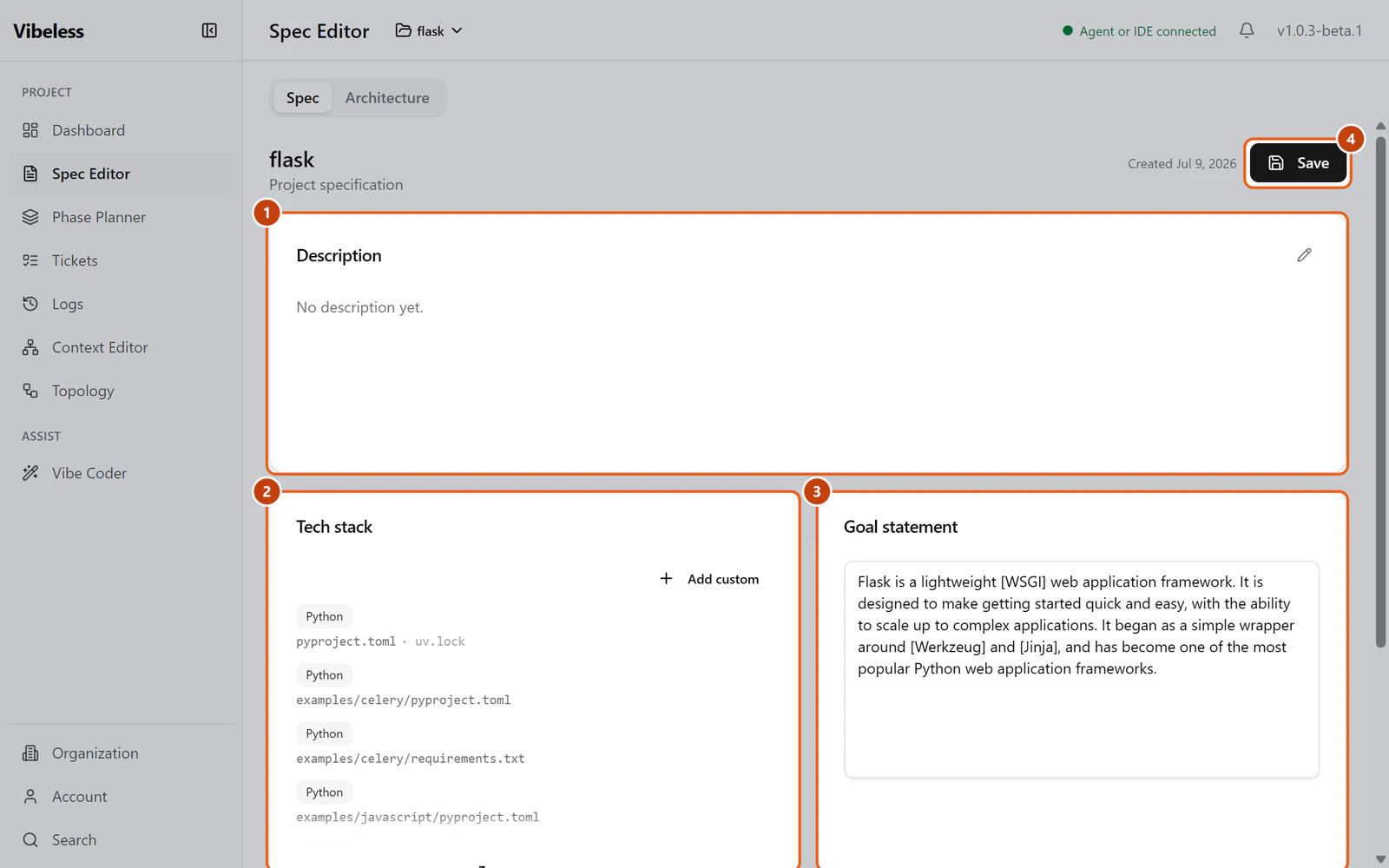
The header shows the project name, the subtitle "Project specification", the date the project was created, and a Save button. Below the header the cards appear in this order.
 (opens full size in a new tab)
Description
The Description card holds a rich text description of the project. It is read-only until you click the pencil icon in the card header. While you edit, your changes save on their own (see How saving works). The check icon saves at once and returns the card to read mode. The X icon puts back the text the card held when you started editing.
Tech stack
The Tech stack card lists the technologies the project uses. Entries come from 2 sources:
- Detected entries. When you import a repository, Vibeless reads each manifest it finds (such as a
package.jsonorCargo.toml) and adds one entry per manifest. Each entry shows a label, the manifest path, the lockfile if one exists, and up to 8 tags. Detected entries are read-only here. - Manual entries. Click Add custom to add a technology that no manifest declares, such as a hosting service. Enter a Name and an optional Category / language, then click Add. Manual entries carry a Manual badge and stay editable inline. A trash icon removes them.
Manual entries survive a later re-import of the repository. A manual row left without a name is not stored.
Detected entries also record the dependency versions from their manifest. These are the "pinned versions" the drift check uses. Drift is a gap between what the project record says and what the code does. When you run a drift check, each pinned dependency is compared with the same manifest in the repository:
- If the manifest now declares an incompatible version, the check reports a High finding.
- If the manifest no longer declares the dependency, the check reports a Medium finding.
- If the manifest itself is no longer found, the entry is skipped, not flagged.
Manual entries carry no versions, so the drift check does not compare them.
Goal statement
The Goal statement card is a single text field for a one-sentence goal for the project. Agents see it near the top of their session briefing.
Constraints
A constraint is a rule the project must follow, such as "No new runtime dependencies without review". The Constraints card lists them as editable rows. Click Add to add a row and the trash icon to remove one.
Some constraints also carry an enforcement pattern that the drift check can match against code. These appear under Machine-enforced rules with a lock icon. They are read-only in the Spec Editor and are kept unchanged when you save. The app no longer proposes patterns; existing ones stay and still drive the drift check.
Non-goals
A non-goal is something the project has decided not to do, such as "No mobile app in this release". The Non-goals card works like the constraints list: type each non-goal on its own row. A non-goal can also carry path globs that let the drift check flag changes in out-of-scope folders. The app no longer proposes them, and this card does not edit them. A non-goal that carries path globs is not shown on this card.
Each list card (Tech stack, Constraints, Non-goals) shows a View / Edit all button with a count. It opens the full list in a side sheet. Edits in the sheet and in the card are the same edits.
What you see on the Architecture tab
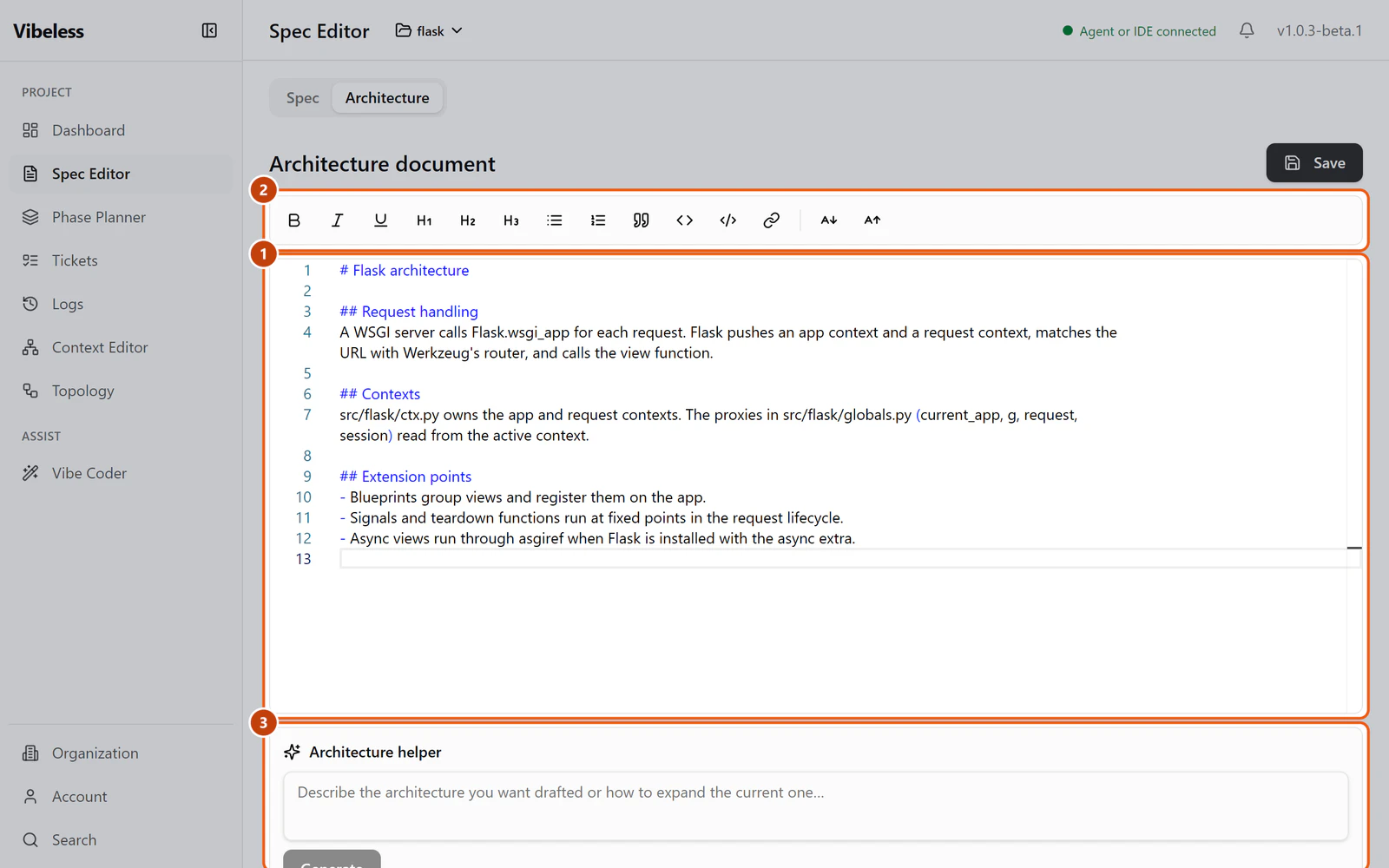
The Architecture tab holds one Markdown document, headed Architecture document, that describes how the project is built. The tab has 3 parts.
 (opens full size in a new tab)
The editor
A code-style Markdown editor with line numbers and word wrap. You type plain Markdown. A Save button sits in the header.
The toolbar
The toolbar wraps the text you have selected in Markdown:
| Button | What it inserts |
|---|---|
| Bold, Italic | **text**, *text* |
| Underline | <u>text</u> |
| Heading 1, 2, 3 | #, ##, ### before the text |
| Bullet list, Numbered list, Quote | - , a number (1. , 2. ), or > before each selected line |
| Inline code, Code block | backticks or a fenced block around the text |
| Link | A Markdown link around the text, with the word url as the address for you to replace |
The last 2 buttons decrease and increase the editor font size, between 8 and 32. The app remembers the size on this computer.
While an architecture helper draft is open, a compare header takes the toolbar's place.
The architecture helper
The Architecture helper box below the editor is an LLM assistant that drafts architecture text for you. It needs a paid plan, and each request uses credits from your plan's budget. The free plan has no LLM features.
- Describe what you want in the text box, for example a new section or an expansion of an existing one.
- Click Generate. The helper reads your current document and writes a full updated version of it. The editor switches to a compare view: Current on the left, as of when you clicked Generate, and Draft on the right, where the draft streams in. Click Stop to stop a draft while it streams.
- When the draft shows Ready to review, both documents show as one diff with a count of changes, and you can edit the draft. Click Insert into editor to replace the whole document with the draft. If the document is not empty, the app first asks "Replace the architecture document?"; click Replace to confirm. If the document is empty, the draft becomes the document with no prompt. To leave without inserting, click Back to editor.
- The inserted draft is an edit to the document, so it saves like any other edit. Click Save to send it at once.
If a draft is cut off before it finishes, it shows Cut off and cannot be inserted. You can still copy from it.
To turn the architecture into phases, use Generate from architecture in the Phase Planner. A phase is a stage of work that groups related tickets. See Phase Planner.
How saving works
The Spec tab and the Architecture tab save on their own.
- An edit is saved about a second after you stop typing.
- An edit still waiting is saved at once when you leave the tab or switch to another project.
- Only the field you edited is written: the description, the tech stack, the goal, the constraints, the non-goals, or the architecture document. A field you are not editing shows changes made elsewhere, for example by a teammate or an import.
- Save and Ctrl+S remain. They send anything still waiting right away. A "Spec saved" or "Architecture saved" message confirms it. The description card's check icon does the same on the Spec tab.
If a save fails, a message says so, for example "Couldn't save the spec".
Quitting the app within about a second of your last keystroke can still lose that keystroke. Click Save or press Ctrl+S before you quit if you typed a moment ago.
Each save is recorded in History, one event per changed field, and you can review those events on the History tab in Logs (see Logs). Saves the app makes on its own are listed there in the same way, and so are saves of the architecture document.
The Agent map tab does not work this way. Its node sheet has its own save button (see Agent map and Search).
How agents use the spec
Agents connect to Vibeless through MCP and read the spec with these tools:
| Tool | What the agent gets |
|---|---|
vibeless_get_project_context | The project name, goal, tech stack, and constraints. The Claude Code, OpenCode, GitHub Copilot, and Gemini CLI profiles add the description and non-goals, and the default profile adds the non-goals. It also returns the active phase with the lowest position number, the project's hooks, the active ticket if one is pinned, the first 1,500 characters of the architecture document, and the project's related projects. |
vibeless_list_constraints | The constraint list as structured items, with the enforcement pattern and severity where a constraint has them. |
vibeless_check_constraint | For a proposed action, the project's written constraints plus any applicable rules from the spec map, and up to 3 related decisions ranked by relevance. The agent decides whether the action complies. A decision is a logged choice the project has made, with its rationale. |
vibeless_get_architecture | The full architecture document, with no length cap. If none exists, it says so. |
Every supported agent except Cursor also receives a session briefing (the SessionStart digest) when a session starts. For GitHub Copilot, Antigravity, and Gemini CLI, delivery in a live session with Vibeless is not yet verified (see Connecting agents). It contains the project name, the goal, a condensed tech stack, the constraints, the first 1,500 characters of the architecture document, and the project's decisions, with decisions that carry forbids listed first. When the spec map may be out of date, it also carries a staleness line, and when the project lists related projects, it names them. It points the agent to vibeless_get_architecture when the document is longer. The briefing does not include the description or the non-goals. On the Claude Code, OpenCode, GitHub Copilot, and Gemini CLI profiles, the agent reads those through vibeless_get_project_context.
Agents read the spec but never write constraint patterns, non-goal path globs, or decision forbids. A forbid is a dependency name on a decision that the decision rules out. People set these fields by hand: forbids on the Decisions tab of Logs, and phase path globs in the Phase Planner. The agent is the thing being governed, so it gets no write path to them.
Rules and limits
On a project you work on alone, you can change everything in the Spec Editor.
On a project shared with a team, your role decides what you can save:
| Role | Spec tab | Architecture tab |
|---|---|---|
| Maintainer | Can change every field | Can edit and save |
| Editor | Cannot save. The app refuses the change, including one it tries to save on its own, and tells you to ask a maintainer. | Can edit and save |
| Viewer | Cannot save. The project is read-only for viewers. | Cannot save |
On a shared project, only a maintainer can change the Spec tab, because every project field governs agents. The same rule covers decision forbids (see Logs) and phase path globs (see Phase Planner).
The architecture helper needs a paid plan and uses credits. Paid plans differ by credit budget, not by features.
If something looks wrong
- A save fails with a message about maintainers. You are an editor on a shared project. Ask a maintainer to make the spec change.
- A save fails with a message about a view-only seat. You are a viewer. Ask a maintainer for editor or maintainer access.
- Your last few characters are missing after a restart. The app was quit within about a second of your last keystroke, before the edit was saved. Re-enter them. Leaving the tab or switching project does not lose an edit.
- A field changed while you were on the page. A field you are not editing follows changes made elsewhere, such as a teammate's edit on a shared project.
- The tech stack is empty. No repository has been imported yet. Import one, or add entries with Add custom.
- The drift check reports a tech stack mismatch you expected. You upgraded a dependency on purpose. Re-import the repository so the detected entry records the new version.
- A machine-enforced rule is wrong. You cannot edit it on the Spec tab, and the app has no other editor for a constraint's pattern. Its pattern still drives the drift check's
constraintdetector, so read those findings with that in mind.